

Overview
This article covers one of the issues that arise after migrating one user account from one Active Directory (AD) forest to another. In this scenario, it is important to note the following:
- The two AD forests are syncing to the same Entra tenant using Entra connect.
- The user account is migrated from the source AD to the target AD using Quest’s On Demand Migration software.
- Not all AD attributes are synced across from source to target.
- During migration of the account, the UPN changes in the target AD. All other attributes and properties remain the same.
Problem
Once the account is migrated, the hybrid identity can run into a subtle but impactful problem: a mismatch between the User Principal Name (UPN) stored in Entra ID and the one held by Exchange Online. The UPN in Exchange online will be showing the old (pre migrated) UPN.
Even though Entra ID correctly reflects the updated UPN after migration, the backend synchronization process does not always update the UPN within Exchange Online. One of the annoying symptoms of this issue is that users can no longer share documents with the migrated user via OneDrive, Teams, or SharePoint. They experience the below error when sharing a document in OneDrive:
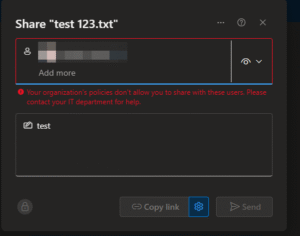
The error states:
Your organization's policies don't allow you to share with these users. Please contact your IT department for help.Solution #1 – Immutable ID
Before moving onto the fix, it is important to first ensure the Immutable ID matches between Entra ID and on-premises Active Directory for the user object.
- Using PowerShell, connect to Azure AD and retrieve the Immutable ID for the user:
Get-AzureADUser -ObjectId <insert UPN of user here> | Select-Object ImmutableId- This will output the Immutable ID, make a note of the number:

- In on-premises AD (on the domain controller for the target environment), retrieve the Immutable ID by running below PowerShell command:
	$user = Get-ADUser <insert samAccountName> -Properties ms-DS-ConsistencyGuid

	if ($user.'ms-DS-ConsistencyGuid') {
	    $bytes = $user.'ms-DS-ConsistencyGuid'
	    $base64 = [Convert]::ToBase64String($bytes)
	    Write-Host "Base64 ConsistencyGuid: $base64"
	} else {
	    Write-Host "ms-DS-ConsistencyGuid is not set for this user."
}
Please note: In this scenario the “ms-DS-ConsistencyGuid” is being used as the source anchor. You will need to verify which source anchor is being used in your environment by validating the Entra connect settings.
- This will convert the immutable ID in the correct format:
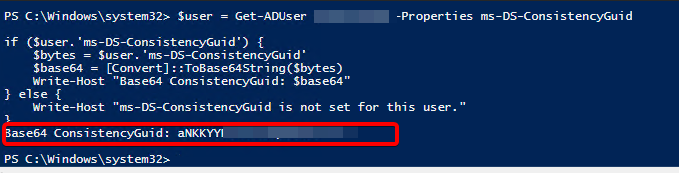
- Compare the Immutable ID with the one from Azure from step #2. If they don’t match, this is the first issue that needs to be resolved. That is out of scope for this article.
Solution #2 – msExchArchiveGuid Attribute
It is possible that the below AD attribute from the source was NOT migrated to the target AD user object:
msExchArchiveGUIDCheck both source and target AD objects to see if there is a value present for the above attribute. If it is present on the source and not on the target account, sync the attribute across using 3rd party software. Alternatively, this can be done via PowerShell. Once the attribute is present on the target account, run a delta sync in Entra connect, and try resharing the document.
Solution #3 – Contact Microsoft
If solution 1 and 2 do not resolve the issue, then log a support ticket with Microsoft. In the ticket explain the mismatch of UPNs in Exchange Online and Entra ID. The ticket will need to get routed to the Exchange team to resolve.
Once the support agent picks up the ticket they need to run diagnostics on the account which will force a backend sync from Entra ID to Exchange Online.
In my case, this resolved the issue. If the document sharing problem persists, ensure you clear all cookies/browsing history from the browser, log out of one drive, close the browser, and log back in.
Further Reading / Resources
Plan and troubleshoot UserPrincipalName changes in Microsoft Entra ID
How UPN changes affect the OneDrive URL and OneDrive features